It's the third business day of the month. Client reports are due Friday. Two of the fourteen files you need haven't shown up. One arrived as client_upload_final2.xlsx, and nobody is sure which month it covers. Another is missing a column the report needs, and nobody will notice until the client does.
To automate monthly reports like these, start with the files coming in, not with Excel. Watch the inboxes and SFTP folders, work out which client and month each file belongs to, check the data, build the reports from templates, and have a person approve them before they go out.
Every week we go through open job postings for operations roles and look for work that shouldn't still be done by hand. This one was for a reporting coordinator, and the company said manual work took up about 60% of the job. We've built this kind of system before, for a client whose monthly reports also ran on email, file drops and spreadsheets. The tools were a bit different, but the problem was the same. Below is how we approach it, how long it takes, what it costs and what it saves.
What the job looks like today
Every month, one person:
- Checks several email inboxes and SFTP folders for the files they expect.
- Downloads each file and figures out which client and month it belongs to.
- Renames it and moves it into the right ShareFile folder.
- Enters or reconciles the data.
- Builds several versions of each monthly report.
- Checks the reports for mistakes.
- Sends the reports to clients.
- Chases anyone whose file is missing or wrong.
None of these steps is hard. The hard part is that one person holds it all together. They know what came in, where it goes and what's still missing. If they're out sick the first week of the month, reports don't go out.
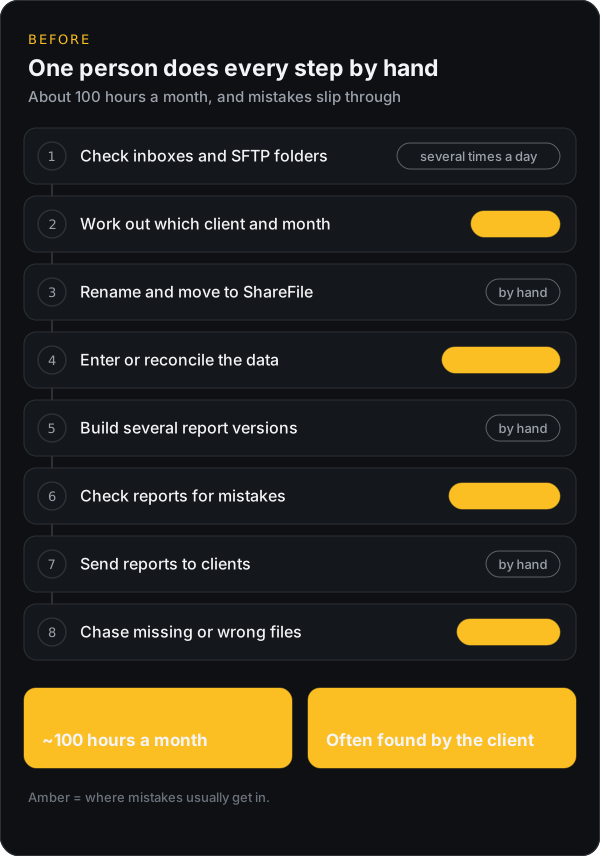
Excel is only one piece of this. Most of the time goes into keeping track of files. Here is the whole flow we automate:
Email / SFTP → receive → identify → check → file away → build report → approve → sendWe don't try to remove every decision a person makes. We automate the routine path, and anything unusual goes to a person with a clear note about what's wrong.
Step 1: Know which files arrived and which are late
A small program checks the inboxes and SFTP folders every few minutes. Clients keep sending files exactly the way they do now.
For each client and month, the system knows which file to expect and when:
| Field | Example |
|---|---|
| Client | Client 1042 |
| Month | 2026-09 |
| Expected file | *activity*.xlsx from reports@client1042.com |
| Sent by | |
| Due | 3rd business day, 12:00 |
| Arrived | 2026-10-02 09:14 |
| Status | Checked |
When a file comes in, the system logs it, saves an untouched copy and fingerprints it, so the same file never gets processed twice. When a file is late, it tells you, and it can send the client a reminder you wrote in advance.
On a similar project we built, this caught more than we expected. Clients often sent the same file twice, once by email and again to SFTP, with different names. Someone had been catching those by eye. The fingerprint catches every one.
This alone ends the part everyone hates: opening folders over and over to see if anything changed.
Step 2: Work out which client and month each file is for
File names are a mess, so the system looks at several clues, starting with the most reliable. Which SFTP folder did it land in? Who sent it? What's the file name? And if that's not enough, what's inside it, like the column names and the dates in the data?
When it's sure, it renames the file to your standard and copies it into the right ShareFile folder through the ShareFile API:
client_upload_final2.xlsx → client-1042_2026-09_monthly-activity_v1.xlsxWhen it isn't sure, it doesn't guess. The file goes to a review list with its best guess and the reason, for example "sender is Client 1042, but the dates in the file are from August." Once someone confirms, the system remembers that for next time.
Step 3: Check the data before building any report
A bad file still makes a nice-looking report. It's just wrong. So every file is checked for:
- Missing columns or the wrong kind of data in a column
- Empty values in important fields
- Duplicate rows
- Dates outside the month being reported
- Row counts or totals that jumped a lot since last month
- A layout that's different from the client's usual file
Good files keep going. Anything that looks off stops, with a message a person can act on.
These checks are ordinary rules written in code. You don't need AI to confirm that a column exists. We take the same approach in our invoice processing guide: rules decide what's valid, and people handle what the rules can't.
Step 4: Build the reports from templates
Once a file passes, its data goes into one shared format, and every report is built from a template. What's different for each client is written down in settings instead of living in someone's head:
- Which locations or accounts to include
- The date range and which sheets to include
- Column names and order
- Logo, colors and file type (Excel, CSV or PDF)
- Who gets it and where it goes
Every report also records which file it came from, which checks it passed, which template built it and when. So when a client asks where a number came from, you can show them in a minute.
Step 5: Let people handle the unusual cases
Instead of a checklist in someone's head, one screen shows where every report stands:
| Status | What it means |
|---|---|
| Waiting | The file hasn't arrived yet |
| Needs attention | Something is wrong and a person has to look |
| Ready for review | The report is built and passed every check |
| Approved | Someone signed off on it |
| Sent | The client has it |
People still handle what needs a person: a missing file that takes a phone call, a client who changed their format, numbers that jumped for no clear reason, new clients, and anything sensitive. The coordinator spends their time on those few cases instead of moving files around.
Step 6: Send reports only after someone approves them
At the start, nothing goes to a client until a person clicks approve. They see the source file, the check results, the report, what changed since last month and exactly who will get it. Approving uploads the report to ShareFile, sends the email and logs everything.
If a network error interrupts the upload, trying again won't send the client a second copy. Our post on idempotency keys explains how that works.
Once a client's reports have been right for a few months in a row, their reports can go out on their own. Riskier reports keep the approval step.
What the month looks like after
Third business day again. The screen shows 12 files checked and filed, and 2 still waiting, with reminders already sent to both clients. One file needs attention because a client renamed a column. The coordinator reads the note, emails the client and has a fixed file by lunch. The rest of the reports are built and waiting for approval.
When we built this before, the part the team liked most wasn't the report building. It was the list of what's missing. For the first time, anyone could see where the month stood without asking the one person who knew.
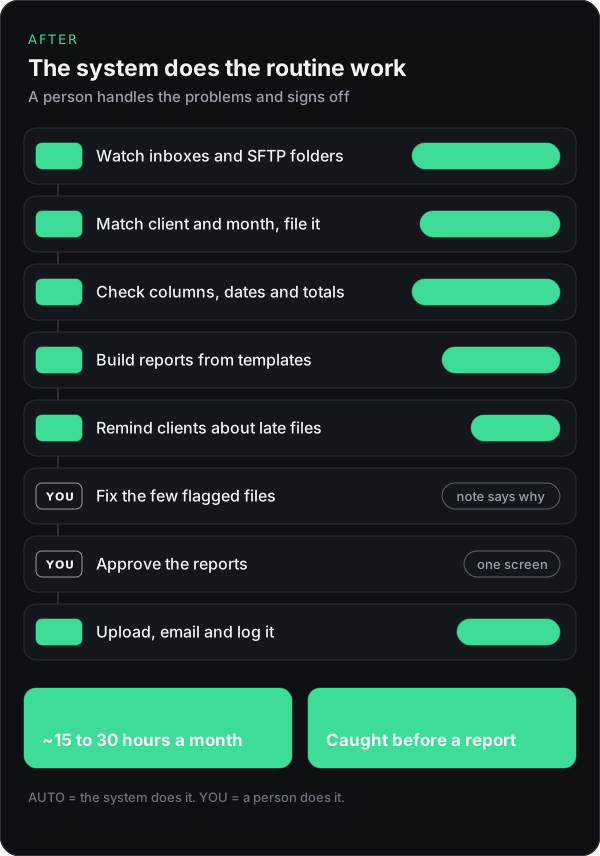
| Before | After | |
|---|---|---|
| Checking for new files | Several times a day, by hand | Never. The system tells you |
| Knowing what's missing | Memory and sticky notes | One screen |
| Bad files | Often caught by the client | Stopped before a report is built |
| Building reports | By hand, several versions each | Built from templates |
| The coordinator's day | Mostly moving files | Mostly fixing problems and talking to clients |
How long does it take to automate monthly reporting?
We never switch everything over in one go. The new system runs next to the old process, and the manual reports stay the official ones until the automated ones match them two months in a row.
| Phase | Time | What you get |
|---|---|---|
| Diagnostic: map how it works today and measure the hours | 1 week | A written plan, a list of every file, hours spent per step |
| Sprint 1: receiving, identifying and checking files, plus alerts | 2 to 3 weeks | No more folder checking. Missing and bad files are flagged for you |
| Sprint 2: building reports, approval screen, sending | 2 to 3 weeks | Reports built and waiting for approval |
| Side-by-side run | 2 reporting months | Automated and manual reports compared before you switch |
That's about 6 to 7 weeks of work, plus two months of running both side by side. Sprint 1 is useful by itself, so you can stop there if that's enough.
Don't skip the side-by-side months. On our earlier project, most of the differences between the two versions were mistakes in the manual reports, not the automated ones. Finding those is often what convinces the team to trust the new system.
How much does it cost?
As of September 2026, this is roughly how we price a job like this. These are estimates, because every case is different. The final price depends on how many file formats, report versions and client-specific rules there are.
| Item | Price |
|---|---|
| Metad Diagnostic (5 business days) | $2,500, credited toward the build |
| Sprint 1: receiving, identifying and checking files | about $12,000, fixed |
| Sprint 2: reports, approval, sending, handoff | $12,000 to $18,000, fixed |
| Total build | about $24,000 to $30,000 |
| Maintenance: monitoring, fixing failed runs, small format changes | about $1,000 a month |
Plan for maintenance. Clients change their files, add locations and rename columns, and someone has to update the rules when that happens. (For how to price and compare automation quotes in general, see how much AI automation costs.) Without it, the team slowly drifts back to doing things by hand. The monthly fee covers small upkeep like that. Bigger changes, like a new report type or a new data source, are quoted separately.
In our experience, clients change their file layouts more often than anyone expects. Nobody tells you. A column moves or gets renamed, and you find out when the numbers look odd. The checks in Step 3 are what turn that into a clear note instead of a wrong report.
How much time and money does it save?
These are estimates too, based on the numbers in the job posting. Every case is different, so we measure your real hours before promising any savings.
- The job paid about $45,000 to $50,000 a year.
- Manual work was about 60% of it. That's roughly 1,250 hours a year, or $27,000 to $30,000 of salary.
- Add payroll taxes, benefits and overhead, and that part of the job really costs the company about $34,000 to $42,000 a year.
- Expect to automate 70 to 85% of the manual work, not all of it.
| Per year | |
|---|---|
| Hours given back to the team | about 870 to 1,060 (70 to 90 a month) |
| What that time is worth, with taxes and benefits | about $24,000 to $36,000 |
| Minus maintenance | $12,000 |
| What's left | about $12,000 to $24,000 |
| Time to pay back a $24k to $30k build | about 12 to 30 months |
So if you only count this one person's salary, the build pays for itself in about one to two and a half years. That's a fair return, but we won't pretend it's a quick one.
Some benefits are harder to put a number on:
- Reports go out days earlier each month.
- Fewer wrong reports reach clients.
- Reporting doesn't stop when one person is sick or on vacation.
- The coordinator has time for analysis and client questions.
What you can add later
Once the basics run smoothly, a few additions are worth considering:
- An upload page for clients. They drop the file in, it's checked on the spot, and they're told right away if a column is missing. Problems get fixed before anyone on your side sees them.
- Pull data straight from the source. If a client's system has an API, the data can be fetched on schedule instead of waiting for someone to export and send a file.
- A short "what changed" note in each report. A few plain sentences on the biggest changes from last month, drafted automatically and checked by a person before it goes out.
- A live view for clients. Some clients would rather log in and see their numbers any time than wait for a monthly file.
- On-time tracking per client. See which clients are always late with their files, so account managers can bring it up.
None of these is needed on day one. Add them once the main flow has run cleanly for a few months.
When it's not worth automating
- Reporting takes a few hours a month. A checklist and a shared tracker cost less.
- There's one file and one report. Power Query, a scheduled export or a simple no-code flow is usually enough. Our n8n vs Zapier vs Make comparison helps you pick one.
- The process still changes every month. Settle it first, then automate it.
Keeping client data safe
Client files often hold sensitive data. A field like facility_id usually means healthcare or financial records. The system should run in your own cloud account, keep SFTP and email passwords in a secure vault, give each connection only the access it needs, and log every file it touches. If the data is regulated, for example under HIPAA, that affects where the system runs and who can see the review screen. We sort that out in the first week, not the last.
You'll see this in other jobs too
Take away the details and this job is someone copying information between systems that don't talk to each other. We see the same thing in job postings for order processing, vendor management, credentialing and finance.
You usually don't need a new platform to fix it. You need something small and reliable that connects the tools you already have, checks the data, keeps a record and hands the unusual cases to a person.
If your team spends the first week of every month chasing files and rebuilding the same reports, send us how it works today. An engineer will reply within 2 business days with which parts are worth automating, a rough price, and whether the numbers make sense for you.